Skip to content
BetaWindows · x64All features for 14 days

Ghostyak Notes

Write on PDFs with pen and keyboard, and find what you read across all your documents.

This is a beta version. You can use every feature without limits for 14 days from the day you first launch it.

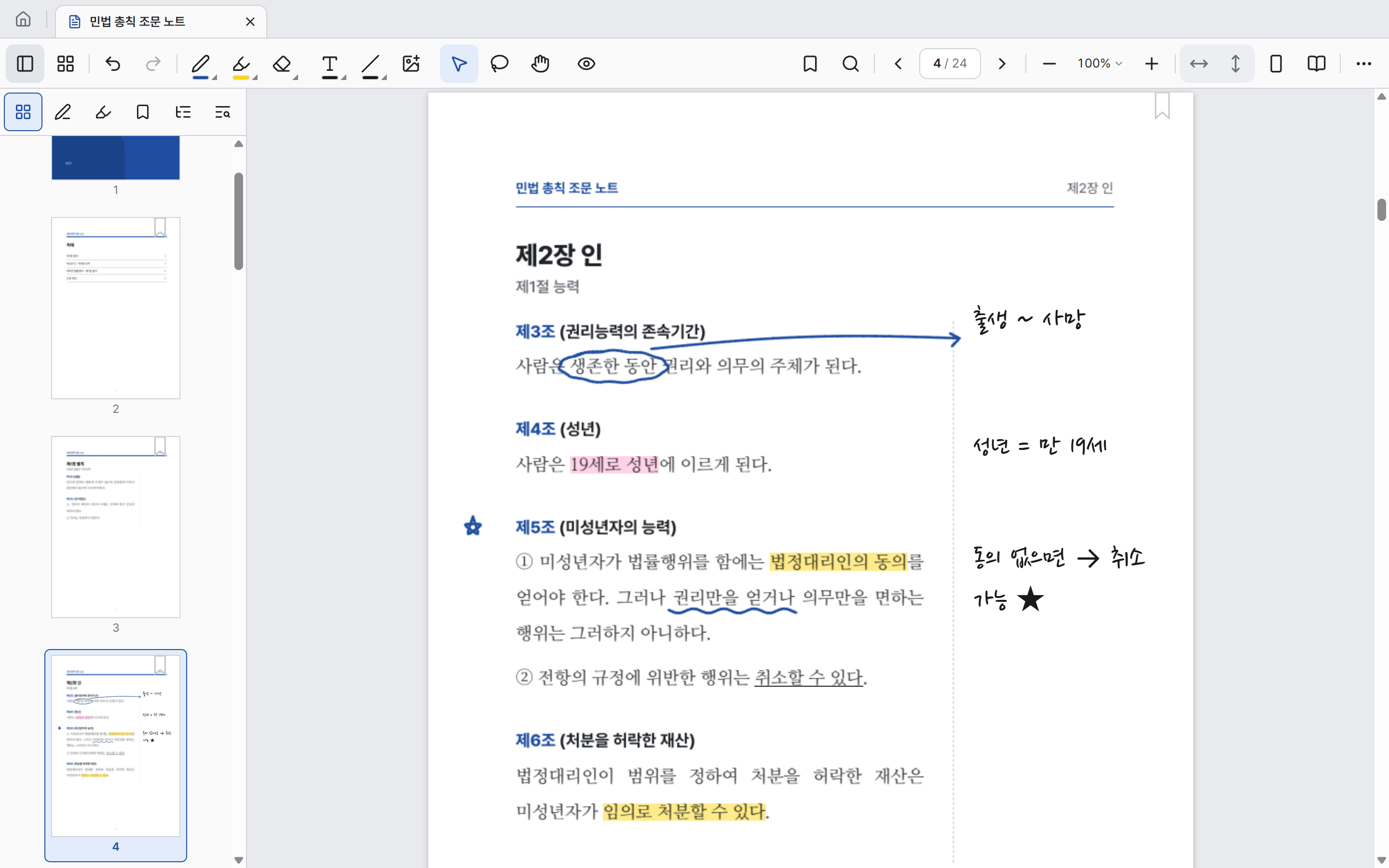
Ghostyak Notes showing a PDF textbook with highlighted text and handwritten notes in the margin
Writing on a PDF · Korean UIView full screenshot

Key features

Read, write, and find, all in one app.

Textbooks and lecture notes, reports and papers. Import a PDF, write right on it, and find the page you need later.

Writing

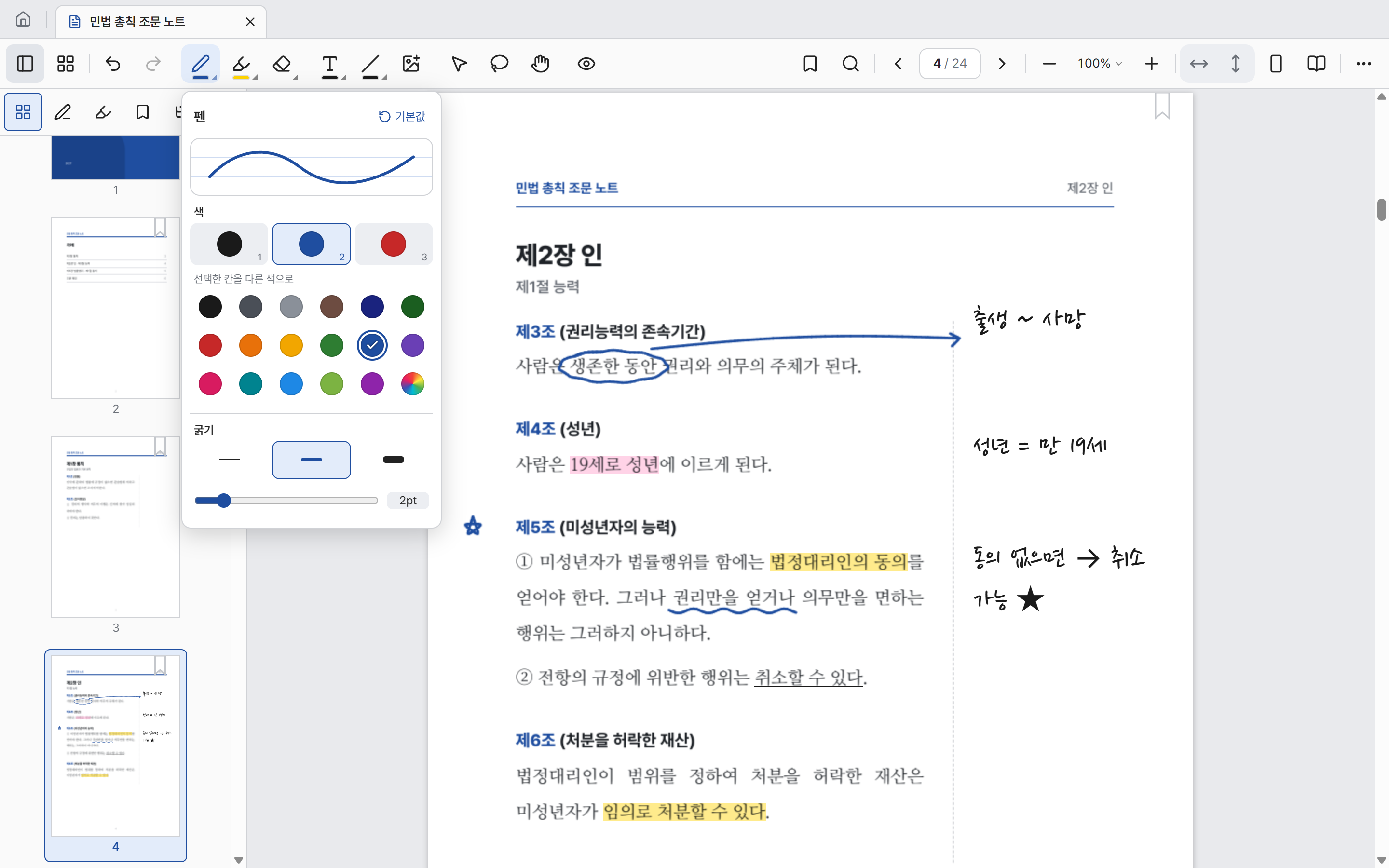
Pen, highlighter, eraser. Colors and thickness your way.

Set three favorite colors and three thicknesses for the pen and for the highlighter, then switch between them instantly. Your writing is saved automatically as you go.

  • Pen, highlighter, eraser, and lasso selection
  • Lines, arrows, rectangles, ellipses, and images
  • Undo and redo
Ghostyak Notes pen settings with three color slots, a color palette, and three thickness levels
Pen settings · Color and thickness

Library search

Not sure which book it was in? Find it in one search.

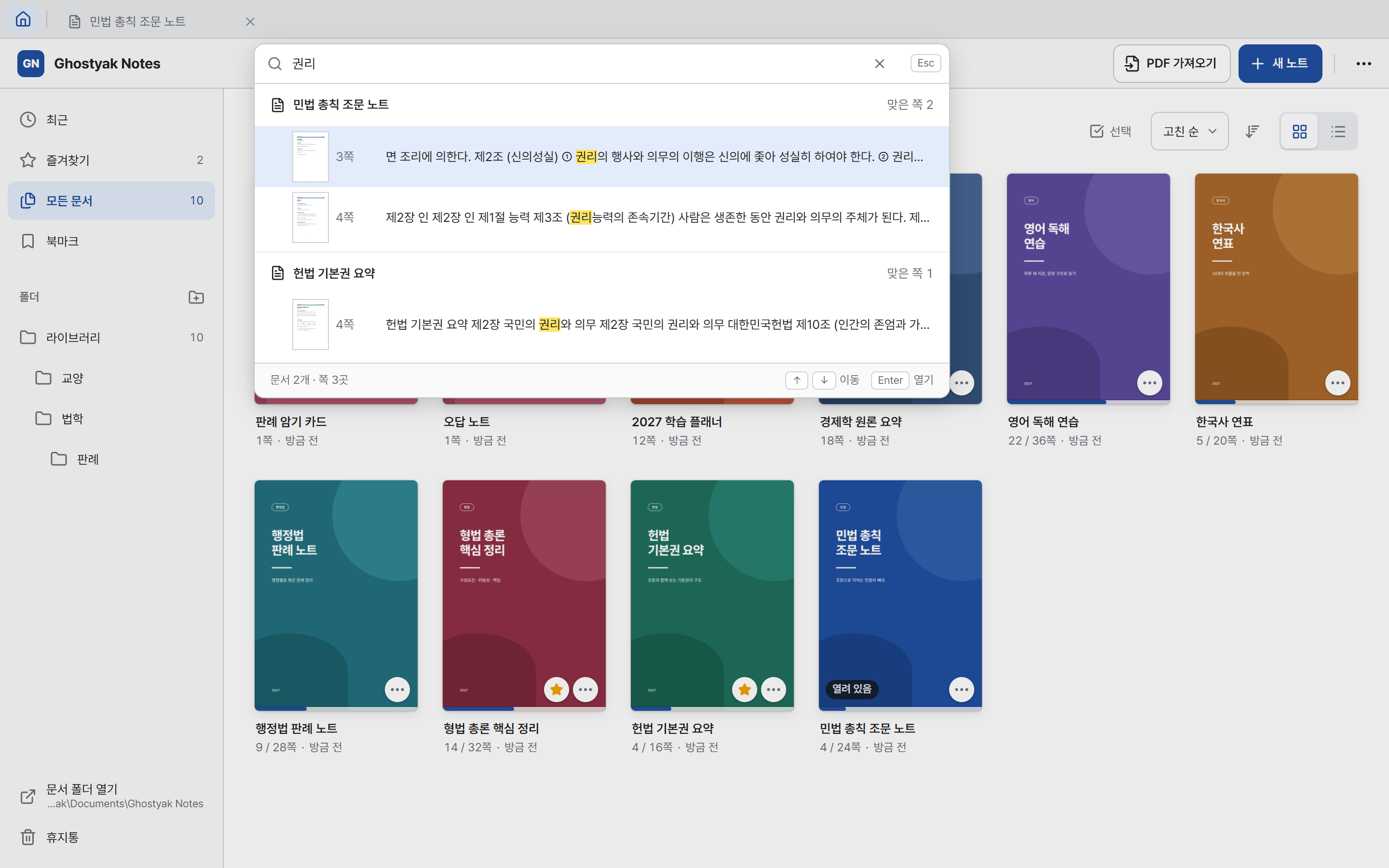
Press Ctrl+Shift+F to search the text of every document in your library. Results are grouped by document with page numbers and previews, and Enter opens that page.

  • Find in all documents (Ctrl+Shift+F)
  • Find in the current document (Ctrl+F)
  • Jump with bookmarks and the PDF outline
Ghostyak Notes library search for a Korean word, listing matching pages from two documents with previews
Find in all documents

Library

Organize textbooks and notes like a bookshelf.

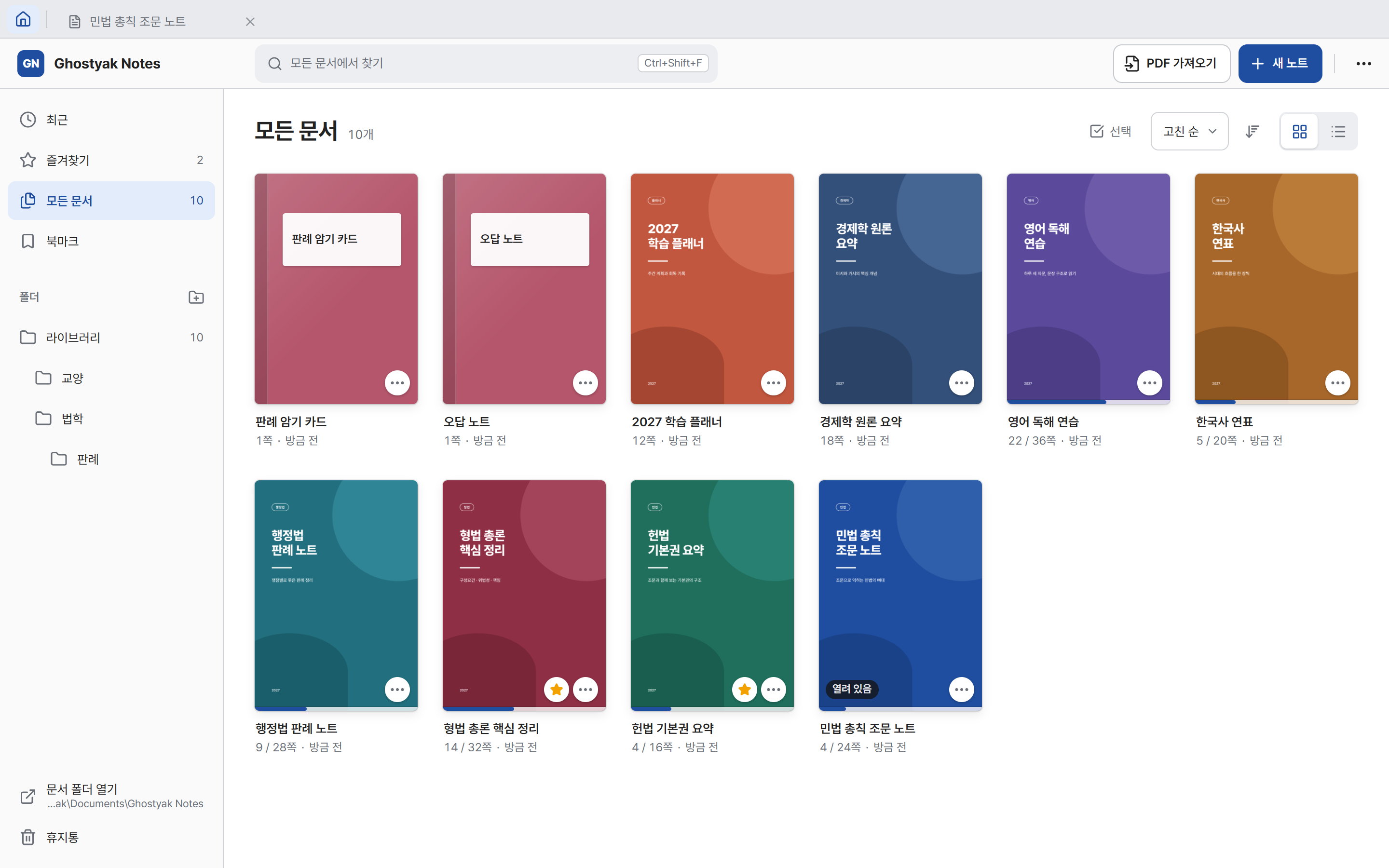
Import PDFs or create new notes and sort them into folders. Each cover shows how far you have read, and you can open several documents in tabs.

  • Folders, favorites, and recent documents
  • Cover grid and list views with sorting
  • Deleted documents are kept in the trash
Ghostyak Notes library showing ten documents as a cover grid, with folders and favorites on the left
Library · Folders and cover grid

Page overview

Move, add, and rotate pages.

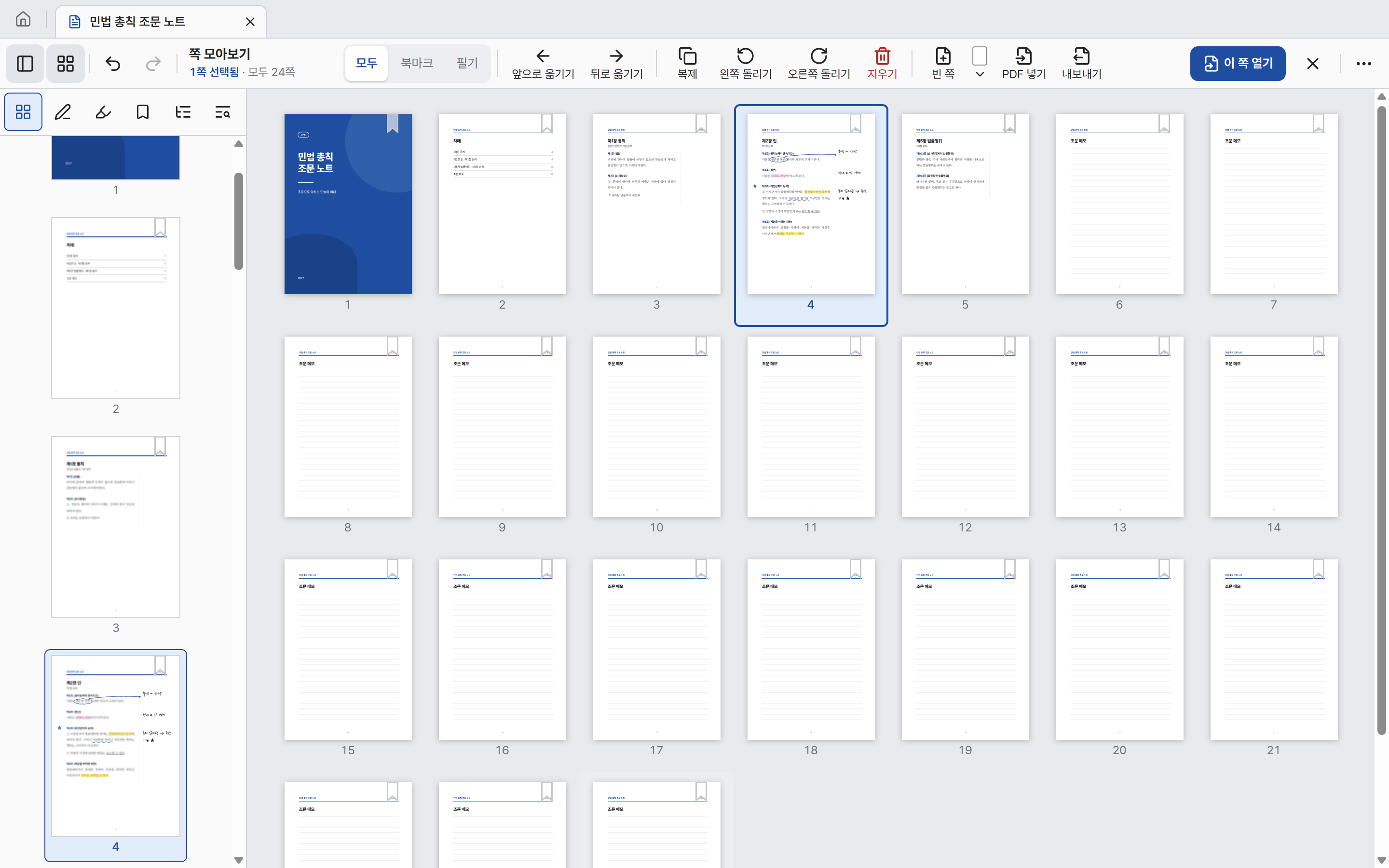
Lay out every page of a document on one screen to reorder, duplicate, delete, or rotate them. You can also add blank pages or insert pages from another PDF.

  • Show only bookmarked or annotated pages
  • Blank pages: plain, lined, grid, or dotted
  • Page edits can be undone too
Ghostyak Notes page overview showing all pages of a 24-page document in a grid, with buttons to move, duplicate, and rotate
Page overview

Viewing

One page at a time, or two like a book.

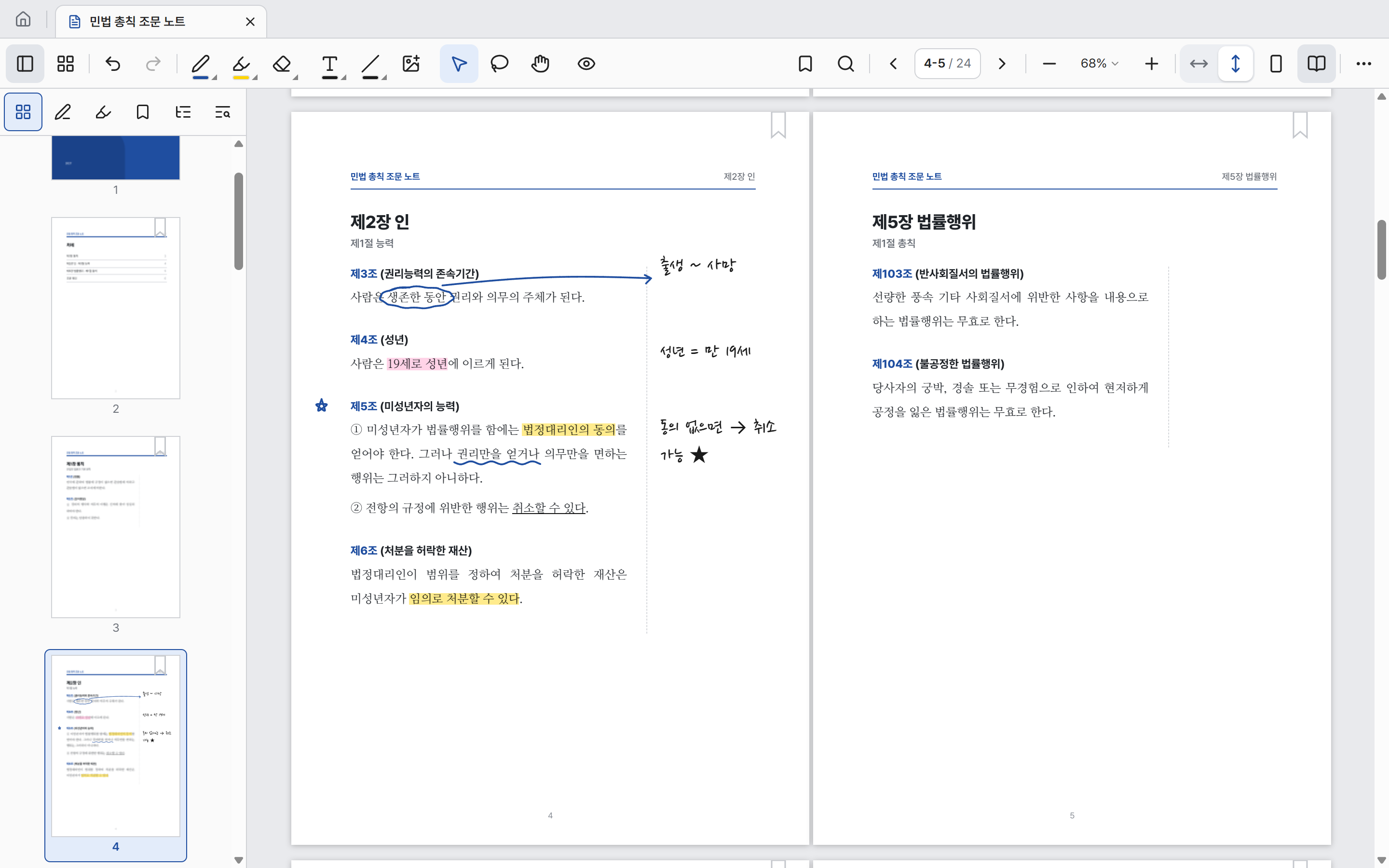
Switch between single-page and two-page view, and zoom to fit the width or height. Even in long documents, the sidebar takes you straight to the page you want.

  • Single-page and two-page views
  • Fit width, fit height, and zoom
  • Sidebar for pages, annotated pages, marked text, bookmarks, and outline
Ghostyak Notes two-page view with annotated pages 4 and 5 side by side
Two-page view

More features

The tools you need for study and work.

  • Text boxes

    Type directly on the page. Choose from sans-serif, serif, handwriting, and monospace fonts.

  • Mark up text

    Select text in a PDF to highlight, underline, or strike it through, and copy it.

  • Bookmarks

    Bookmark important pages and jump to them from the list.

  • Peek

    Click handwriting or a text box to make it see-through for a moment and check the text underneath.

  • Autosave

    There is no save button. Your writing is saved to the document file as you go.

  • Keyboard shortcuts

    Pick tools, search, and move between pages with shortcuts.

Stored on your PC

Your documents stay on your PC.

Documents are saved as files in the ‘Ghostyak Notes’ folder inside your Documents folder. You don’t need an account or an internet connection, and the original PDF files you import are never changed.

About the beta

14 days, every feature, no limits.

The installer available now is a beta version. The usage period starts on the day you first launch the app.

  1. All features for 14 days

    For 14 days from first launch, you can use every feature, including writing, library search, and page editing.

  2. Read-only after that

    When the usage period ends, you can only open and read documents. Writing and library search are unavailable.

  3. 14 more days with the next version

    Install the next version to use it for another 14 days.

Your documents and handwriting are not deleted when the period ends.

FAQ

Frequently asked questions

You can use every feature without limits for 14 days from the day you first launch the app. The app tells you when the usage period ends the first time you launch it.

Download it and import your first PDF.

Windows x64 · Beta · All features for 14 days