
Folder History
Record the folders you visit in File Explorer, then reopen them right from the tray.
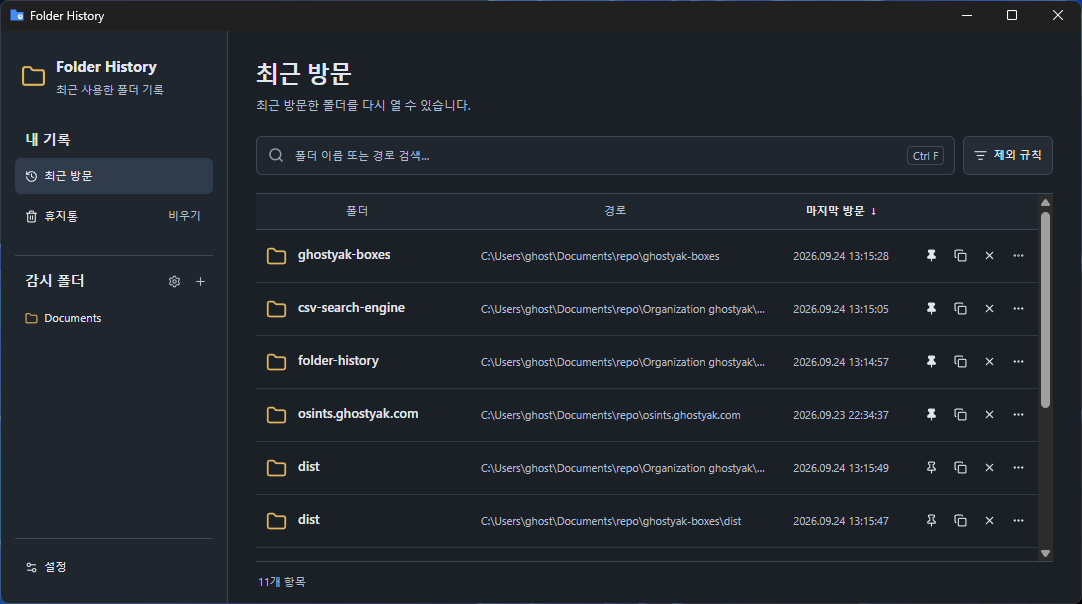
How it works
Stop hunting for folders. Open them from your recent visits.
When you can’t remember where you were working a few days ago, double-click the tray icon to see your recently visited folders in order.
Add a watched folder
Choose a folder to record. That folder and its subfolders make up the recording scope.
Use File Explorer as usual
When you open a folder in Windows File Explorer, its last visit time is recorded automatically.
Reopen from the tray
Double-click the tray icon, then double-click a folder in the list or press Enter to open it again in File Explorer.
Key features
Just the folders you need, the way you want.
Search and sort
Search by folder name or path (Ctrl+F), and sort by folder, path, or last visit.
Pin to top
Pin folders you open often to keep them at the top of the list.
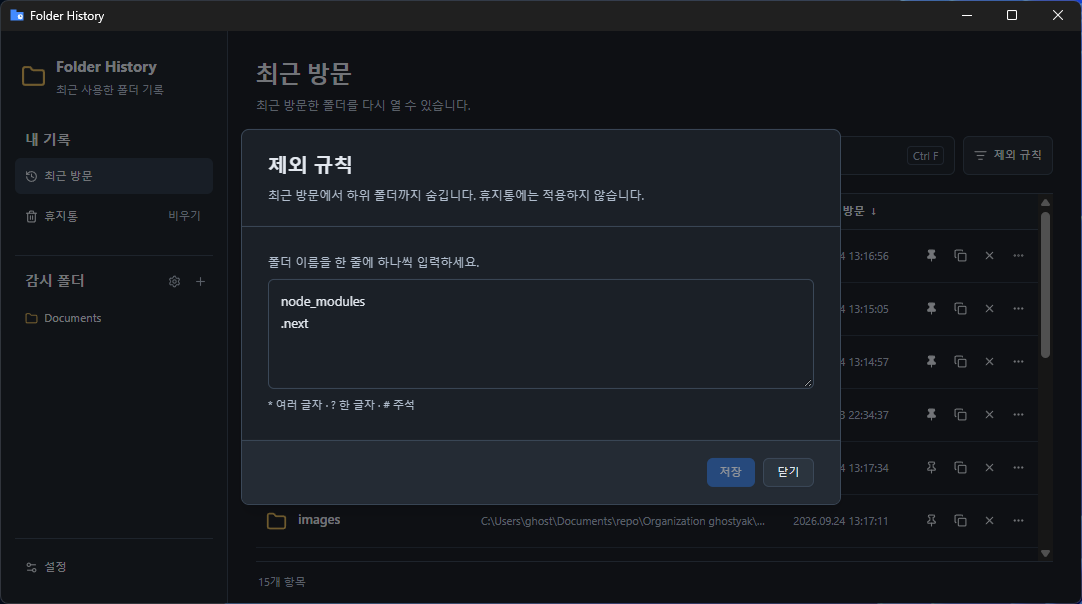
Exclusion rules
List folder names you don’t want recorded, such as node_modules or .git, one per line. You can use * and ?.
Trash and restore
Deleted records go to the trash and can be restored with their original visit time.
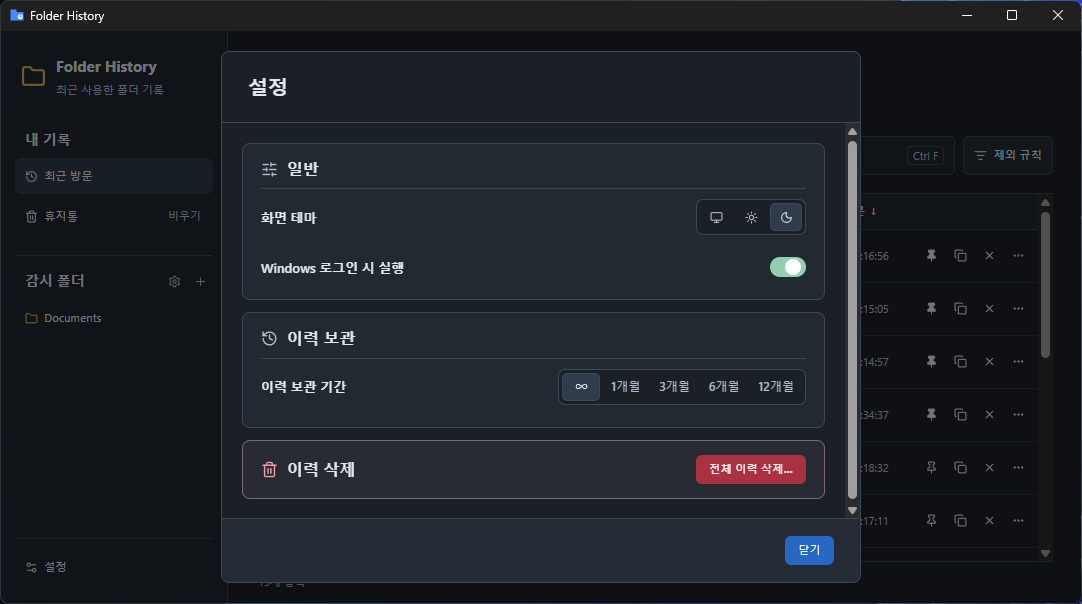
History retention
Keep history indefinitely, or clean it up automatically after 1, 3, 6, or 12 months.
Copy path
Copy a folder’s full path with the row’s copy button or Ctrl+C.
Stored on your PC
Your history stays on your PC.
Visit history and settings are stored in local app data on your PC, with no server or account required. Deleting records leaves your actual folders and files untouched.
FAQ
Frequently asked questions
It records when you open a folder inside a watched folder in Windows File Explorer, or return to that folder from another window or tab. Navigation in other file managers or file open dialogs, and file changes, are not recorded as visits.
Download it and add your first watched folder.
Windows 11 x64 · Installs without administrator rights